Why Flutter Text Looks Lighter Than SwiftUI on iOS
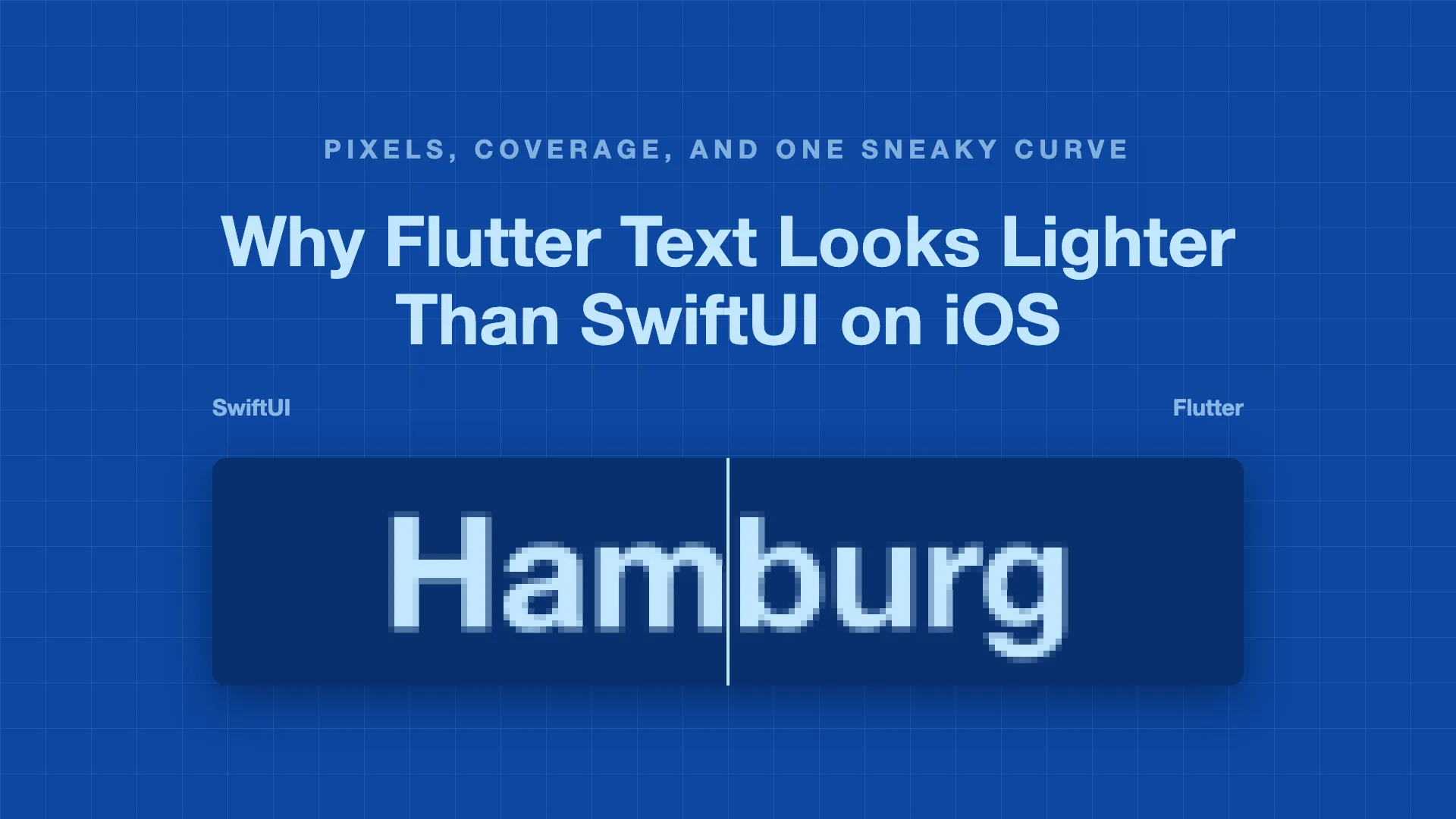
I have been doing Flutter development for years, and one complaint keeps coming up the whole time: Flutter’s text doesn’t match SwiftUI. Flutter’s text looks lighter than SwiftUI. It shows up in issue trackers, in design reviews, and in side-by-side screenshots of the same screen built twice.
I had noticed it myself plenty of times too, but never cared enough to dig into Flutter’s internals and figure out why. That’s what this article is about.
So in this article, I’ll try to answer one question: why does Flutter text look lighter than SwiftUI text? On the way, we’ll learn how text gets drawn on a screen, what font smoothing is, and what Flutter does differently from iOS. You don’t need to know anything about font rendering to follow along. So let’s begin.
First, here’s the difference we’re talking about.
At normal size it’s subtle. Zoomed in, the edges on the Flutter side are clearly lighter. By the end of this article, you’ll know exactly where that comes from.
The demos in this post run in your browser, so they can’t show real iOS or Flutter pixels. Instead, they recreate the same math both platforms use.
How does text get drawn on a screen?
Let’s start with the basics, because the whole story depends on them.
A font file doesn’t contain pictures of letters. It contains a glyph for each character. A glyph is the shape of a character, stored as an outline: a set of lines and curves, a bit like an SVG icon. Because an outline is just math, a glyph can be drawn sharp at any size.
Your screen is a grid of tiny squares called pixels, and each pixel can show only one color. So before any text can appear, something has to turn the smooth outline into pixels. This step is called rasterization.
Here’s the tricky part. The edges of a letter rarely line up with the pixel grid. Along a curve, some pixels are completely inside the letter, some are completely outside, and many are only partly inside.
How much of a pixel is inside the outline is called its coverage. It’s a number from 0 to 1:
- 0 means the pixel is completely outside the letter.
- 1 means it’s completely inside.
- 0.4 means 40% of the pixel is inside.
So what should happen to a pixel that’s 40% inside? The simple answer is to fill it if it’s more than half covered and leave it empty otherwise. That works, but the edges come out jagged, like a staircase. That’s how text looked on very old computers.
The better answer is to use the coverage as a shade. If a pixel is 40% covered by black text on a white background, color it 40% gray. Your eye blends these gray pixels into a smooth edge. This is called antialiasing. Since it only uses shades of the text color, it’s often called grayscale antialiasing.
In this article, I’ll use the word ink for how dark a pixel ends up on screen. With plain antialiasing, ink is equal to coverage: a pixel that’s 40% covered gets 40% ink.
Try it yourself. Turn antialiasing off to see the staircase, and tap around the edge of the letter to see each pixel’s coverage.
So drawing text comes down to two numbers for every pixel: its coverage (how much of the pixel the letter covers) and its ink (how dark it’s drawn). Keep these two in mind. The whole difference between Flutter and SwiftUI comes from the gap between them.
What is font smoothing?
You may have seen the term font smoothing in macOS settings, or in CSS as -webkit-font-smoothing. It sounds like it should explain everything. Here’s what Apple’s own docs say about it:
Fonts are smoothed if they are antialiased when drawn and if font smoothing is both allowed and enabled.
That tells us when smoothing happens, but not what it does. The reason is that the name has been used for different tricks over the years. Each one is something extra that a renderer does on top of plain antialiasing. There are three you should know about.
1. Subpixel antialiasing. Each pixel on an LCD screen is made of three thin strips: red, green, and blue. This trick lights up the strips separately, as if each pixel were three smaller pixels. Edges get sharper, but you can see faint colored fringes around the letters. Windows calls this ClearType, and older versions of macOS used it too.
2. Dilation. The renderer makes the letter outline a little thicker before turning it into pixels, so the text looks slightly bolder. This is what font smoothing means on a Mac today. With it turned on, a line of text gets about 18% more ink.
3. A coverage curve. The renderer changes the rule that turns coverage into ink. Instead of “40% coverage gets 40% ink”, each coverage value goes through a curve, so a 40% pixel might get 30% ink, or 55%. The letter keeps its shape, but its edges get lighter or darker. Remember this one, because it’s the one that matters for Flutter.
Here are all three next to plain antialiasing:
Apple stopped using subpixel antialiasing on the Mac in 2018, with macOS Mojave. At WWDC that year, Apple said this means text “looks great on a much wider variety of panel technologies, as well as scaling modes”. iOS apps never used it at all. Phone screens rotate, and the trick only works when the red, green, and blue strips stay in the same order from left to right.
How does iOS draw text?
Now we know the options. So which one does iOS use?
A simple way to find out is to draw the same sentence three ways: with SwiftUI’s Text, with a UILabel, and directly with CoreGraphics, Apple’s low-level 2D drawing framework. Then compare the results pixel by pixel.
All three are identical. Every pixel matches, in light mode and in dark mode. And every edge pixel gets exactly its coverage as ink.
So iOS uses plain grayscale antialiasing and nothing else. There’s no subpixel trick, no dilation, and no curve.
Turning on CoreGraphics’ font smoothing switch doesn’t change anything either. The old smoothing code is still inside iOS, and you can wake it up if you really try (it needs a special kind of opaque bitmap and two opt-in settings). UIKit and SwiftUI never do that.
So why does iOS text look so good? Mostly because of the font. SF Pro, the system font, has optical sizes, which are slightly different letter designs for small and large text. iOS also adjusts the spacing between letters based on the text size. We’ll come back to the spacing part later, because Flutter misses that too.
What does Flutter do differently?
Flutter doesn’t use UIKit or SwiftUI to draw anything. It draws every pixel itself, and text is no exception. So to find the difference, we need to follow a letter through Flutter’s own pipeline.
Three names will come up along the way:
- Impeller is Flutter’s rendering engine. It takes what your widgets paint and draws it with the GPU. On iOS, it’s the only renderer Flutter has.
- Skia is a graphics library. Flutter used it as its renderer before Impeller, and Impeller still uses it for one job: turning a glyph into pixels. On Apple devices, Skia asks CoreGraphics to do the actual rasterizing.
- The glyph atlas is one big image that holds every glyph Flutter has rasterized, like a sheet of stickers. Rasterizing a glyph is slow, so Flutter does it once, saves the result in the atlas, and copies from there every time that letter appears on screen.
Here’s the path a single letter takes:
Look at step 2. At that point, Flutter has exactly the same pixels iOS would show, because they come from the same CoreGraphics code. If Flutter put those pixels on screen as they are, its text would match iOS.
But in step 3, before the glyph goes into the atlas, Skia sends every pixel through a lookup table. That table is where the ink goes missing.
What is this lookup table?
A lookup table is the simplest kind of function. It’s a list of 256 numbers. To use it, you take a pixel’s coverage (stored as a number from 0 to 255), go to that position in the list, and use the number you find there as the new value. Skia uses one to change how coverage turns into ink.
But why would Skia want to change it at all? Isn’t coverage already the right answer?
It’s close, but there’s a catch. Screens don’t show brightness in a straight line. A pixel stored as 50% gray doesn’t give off half the light of a white pixel. It gives off much less, because colors are stored in a format called sRGB, which spends more of its values on dark shades (that’s closer to how our eyes work). So when a renderer mixes the text color and the background by coverage, the result is a little off from the mix of light that the math describes.
Skia’s lookup table tries to correct for this. It adjusts coverage so that the simple mix looks like the physically correct mix of light. Here’s the important detail: the right correction depends on the text color. For dark text on a light background, it takes ink away from the edges. For light text on a dark background, it adds ink. So Skia builds a separate table for each text color.
Three small details in Flutter’s engine decide how this plays out.
First, Flutter turns the table on. Skia only applies the table to glyphs if it’s built with a setting called SK_GAMMA_APPLY_TO_A8. (A8 is the format glyphs are stored in: one 8-bit coverage value per pixel.) Flutter’s engine sets it in skia/BUILD.gn:
config("skia_private") {
  defines = [ "SK_GAMMA_APPLY_TO_A8" ]
  if (skia_use_fixed_gamma_text) {
    defines += [
      "SK_GAMMA_EXPONENT=1.4",
      "SK_GAMMA_CONTRAST=0.0",
    ]
  }
}
The two values inside the if only apply on Android. On iOS, Skia uses its defaults: a curve shaped like sRGB, plus a contrast setting of 0.5. Contrast pushes edge pixels a bit further toward fully solid or fully empty. For comparison, Chrome builds Skia for the Mac with contrast set to 0.
Second, Flutter always asks for the black-text table. Remember that Skia picks a table based on the text color. Impeller draws each glyph into the atlas once, in black, and reuses that same glyph for every color on screen. This code in font_glyph_pair.h decides it:
// kLight is only used for macOS, where Apple's CoreText renders dark and
// light text differently, requiring different glyphs for each. On other
// platforms, this always returns kDark.
static Tone ComputeTone(const Color& c) {
#if FML_OS_MACOSX && !FML_OS_IOS
  Scalar luma = c.red * 0.2126f + c.green * 0.7152f + c.blue * 0.0722f;
  return (luma > 0.5f) ? Tone::kLight : Tone::kDark;
#else
  return Tone::kDark;
#endif
}
On macOS, light text gets its own glyphs. On iOS, the function always returns kDark. So every piece of text in a Flutter iOS app, white text included, goes through the table made for black text. And as we just saw, that’s the table that takes ink away from the edges.
Third, nothing undoes it. Impeller’s text shader (the small GPU program that draws glyphs from the atlas) can apply its own correction, but it’s switched off on iOS. So the lighter edges go straight to the screen.
Here’s what the table looks like:
The solid line is Skia’s formula for its black-text table, and the dots are real pixels from SwiftUI and Flutter screenshots of the same sentence. They line up closely, which confirms that this table is what makes Flutter’s text lighter.
For one line of 17 pt text on a 3x screen, here’s how the two compare:
| Native iOS | Flutter | |
|---|---|---|
| Total ink | 100% | 93.8% |
| Average ink of an edge pixel | 0.495 | 0.413 |
So Flutter text has about 6% less ink overall, and its edge pixels are about 17% lighter on average. Fully covered pixels stay solid, so the letters keep the same shape and size. Only the edges fade, and your eye reads that as text that’s a little lighter and thinner.
The text color doesn’t change this either. White text on black loses exactly as much ink as black text on white. That’s a clear sign the black-text table is used for everything. With the right table for white text, light text would come out heavier.
Why did Flutter choose this?
At this point I wondered whether this was a bug. It turns out the Flutter team chose it on purpose.
In 2023, Impeller’s glyph atlas switched from drawing glyphs in white to drawing them in black. The author of that change wrote that “white text now looks a bit too thin (seems like a better outcome than making the text too thick?)”. A few months later, in another change, they explained: “We have it tuned to draw black text on a white background right now because black text that’s too thick looks worse/more jarring than white text that’s too thin.”
So Flutter had to pick between two small errors, and it picked text that’s a bit too thin over text that’s a bit too thick. I think that’s a fair call. iOS never has to make it, because it doesn’t adjust coverage at all.
The story almost changed in May 2026. A fix for macOS gave dark and light text their own glyphs, to match how the Mac draws each. The pull request considered doing the same for iOS but decided against it. Modern iPhones have high-density screens where the difference would be subtle, so iOS was declared out of scope. Meanwhile, the issue that tracks this on iOS, #120857, is still open with a P2 label.
What does this mean for your app?
Small text gets lighter than big text
The table only changes edge pixels. A big letter has lots of solid pixels inside and relatively few edge pixels. A small letter is almost all edges. So the smaller the text, the more ink it loses.
On a 3x iPhone screen, 17 pt body text is drawn at about 51 pixels, so it only loses around 6% of its ink. Captions, timestamps, and footnotes are much smaller, so they lose more. If the small print in your Flutter app looks weaker than in native apps, this is why.
Letter spacing is off too
There’s a second difference that has nothing to do with ink. Put the same sentence side by side in SwiftUI and Flutter, with the same font and size, and the Flutter line comes out wider. Over 36 characters at 17 pt, it’s about 15 pt wider.
This comes from SF Pro’s tracking table. Tracking means the space between letters, and SF Pro comes with a table that says how much to tighten or loosen it at each text size. iOS applies it automatically. Flutter doesn’t read it, so it uses the font’s default spacing at every size.
At 17 pt, the table works out to about -0.43 pt per letter. Flutter’s Cupertino theme hard-codes letterSpacing: -0.41 for its 17 pt body style to get close to that. But as soon as you use a plain TextStyle with your own size, you get the default spacing again. Looser text also looks lighter, so this gap adds to the ink gap.
People have been reporting this for a long time. Back in 2018, #22572 compared a Flutter Text with a UILabel and found Flutter’s line “a bit more spaced out”. Around the same time, #18915 asked Flutter to switch from SF Pro Text to SF Pro Display at 20 pt, as Apple does. The Apple guideline quoted in that thread also says to “adjust the spacing between letters appropriately”. The font switch was eventually fixed, but the spacing part never got picked up.
The most detailed report is #150824 from 2024. Its author tried to match native text using only letterSpacing and found that the right amount changes with text size along a curve. They ended up fitting a cubic polynomial to it. Later, other people pointed out that Apple publishes this curve as a table in its typography guidelines. All three issues are open at P2, and none of them has an assignee.
Screenshot tests against native won’t match
If you compare screenshots of your Flutter app with a native reference, text will always show up as different, even when the layout is perfect. Compare total ink instead of exact pixels, or leave text out of the comparison. Otherwise you’ll spend time chasing differences that aren’t real problems.
Can this be fixed?
Yes, and the change itself is small. On iOS, the goal is for the glyph atlas to keep the pixels exactly as CoreGraphics drew them, because that’s what native rendering shows. There are three ways to get there.
You can’t apply any of these fixes from your own app. They all change Flutter’s engine, the C++ part of Flutter that the
fluttertool downloads already built. To try one, you’d have to download the engine’s full source code and its dependencies (many gigabytes), set up Google’s build tools, build the engine yourself, and then run your app against that build withflutter run --local-engine. The simulator and real devices each need their own build. So these fixes are really for the Flutter team, or for anyone who wants to send them a pull request.I also haven’t built a patched engine to try them. They come from reading the source code of Skia and Impeller, and the demos below only simulate the math. They should work, but treat them as a starting point for a pull request.
Fix 1: make the table do nothing. Skia lets you set a text contrast and a text gamma for each drawing surface. With contrast 0 and gamma 1.0, the table returns every value unchanged. Impeller currently creates its atlas surfaces with the default settings, so the change is one constructor call. Here’s a sketch:
// typographer_context_skia.cc wraps glyph bitmaps in two places: one draws
// a batch of glyphs, the other draws one glyph at a time. Both need this.
#if FML_OS_IOS
  // Match UIKit: keep CoreGraphics coverage exactly as rasterized.
  SkSurfaceProps props(0, kUnknown_SkPixelGeometry,
                       /*textContrast=*/0, /*textGamma=*/1);
  auto surface = SkSurfaces::WrapPixels(bitmap.pixmap(), &props);
#else
  auto surface = SkSurfaces::WrapPixels(bitmap.pixmap());
#endif
Fix 2: turn the table off for iOS builds. If SK_GAMMA_APPLY_TO_A8 isn’t defined, Skia skips the table for glyphs on its own. It’s an even smaller change, but it affects everything Skia draws on iOS, so it could change more than text.
Fix 3: undo it in the shader. Remember the correction in Impeller’s text shader that’s switched off on iOS? Here’s the code from glyph_atlas.frag:
if (frag_info.text_contrast != 1.0) {
  // Applies gamma correction to take into account we are performing in
  // linear space but some fonts are expecting to operate in gamma space.
  coverage = 1.0 - pow(1.0 - coverage, frag_info.text_contrast);
}
This uses a curve from the same family as Skia’s table, just bent the other way. If iOS used a fixed text_contrast of about 1.6, the two curves would almost cancel out. At 17 pt, a value of 1.61 gets the ink to match iOS almost exactly. Fixes 1 and 2 are still cleaner, because skipping the table is more exact than undoing it afterwards.
Here are all three side by side, along with what Flutter does today and the workaround from the next section:
Comparing the fixes
Each row is the same word. The top row is the goal. Move the sliders to tune the shader fix and the double draw.
Any of these would change how every Flutter app looks on iOS: about 6% more ink at body sizes, and more for smaller text. So a real fix would need an opt-in flag or a migration note, and new golden images for tests. None of that is technically hard. What’s missing is mostly a decision.
What can you do today?
Until the engine changes, apps can’t reach the atlas or the shader, and there’s no TextStyle setting for any of this. But you can get most of the missing ink back by drawing the text twice. The easiest way is a shadow with no blur, placed right on top of the text:
Text(
  'Hamburgefonstiv',
  style: TextStyle(
    fontSize: 17,
    color: ink, // must be fully opaque, or the two draws stack alpha
    shadows: [
      // A second pass of the same glyphs, right on top.
      // Zero offset + zero blur gets skipped, hence the 0.01.
      Shadow(color: ink.withValues(alpha: 0.75), offset: Offset(0, 0.01)),
    ],
  ),
)
The second copy at 75% opacity adds ink to the light edge pixels and leaves the solid pixels alone. It gets the ink to within about one percent of iOS. It’s the double draw row in the demo above.
There are two catches. First, the text color must be fully opaque. With a see-through color, the two copies add up and the text gets too dark. Second, it draws your text twice, so use it where it matters and not on every widget.
For letter spacing, set letterSpacing to match SF’s tracking at the sizes you use, or use Cupertino’s text theme where it already does. There’s also an open proposal, #179828, to build Apple’s per-size values into the Cupertino library so you won’t have to.
One thing I’d avoid is switching to a heavier font weight. A heavier weight changes the letter shapes, so the stems get thicker while the edges stay lighter than native.
Summary
Flutter text looks lighter than SwiftUI text on iOS because of one lookup table.
Flutter and iOS start with the same pixels from CoreGraphics. iOS puts them on screen as they are. Flutter first sends them through Skia’s lookup table for black text, then saves them in the glyph atlas. The table makes edge pixels lighter and leaves solid pixels alone. So the letters keep their shape, and only the edges fade.
Flutter uses that black-text table for every text color, white text included. For 17 pt body text, the result is about 6% less ink than native, and smaller text loses more. Flutter also doesn’t read SF Pro’s tracking table, so its lines come out a little wider than native.
The Flutter team made the lighter edges on purpose. They had to choose between text that’s a bit too thin and text that’s a bit too thick, and they picked thin. If this matters for your app, #120857 is the issue to follow.
Until the engine changes, you can get most of the ink back on the text that matters most. Keep the text color fully opaque and add a same-color
Shadowat 75% opacity on top. For spacing, setletterSpacingto match SF Pro’s tracking at the sizes you use.
Next time someone says Flutter text looks thin on iPhone, I hope you’ll know exactly why.
References
- CGContext.setShouldSmoothFonts, Apple Developer
- CGContext.setAllowsFontSmoothing, Apple Developer
- WWDC18 session 209, where macOS subpixel antialiasing was retired
- Skia’s mask gamma implementation, SkMaskGamma.h
- SkSurfaceProps with textContrast and textGamma
- Flutter engine: skia/BUILD.gn gamma defines
- Flutter engine: ComputeTone in font_glyph_pair.h
- Flutter engine: glyph_atlas.frag text_contrast hook
- flutter/engine#39383: Make dark text appear less emboldened
- flutter/engine#41780: discussion of tuning glyphs for black text
- flutter/flutter#186074: separate light and dark glyphs for macOS
- flutter/flutter#120857: Font weight is too light in light mode and too heavy in dark mode
- flutter/flutter#150824: Flutter’s text rendering has different letter spacing from iOS native
- flutter/flutter#22572: Default Text widget’s letter spacing is a bit off
- flutter/flutter#18915: Flutter does not respect SF Pro breakpoints
- flutter/flutter#179828: Consider adding dynamic type to the Cupertino library